
Advanced Git Bisect and Blame Techniques for Tracking Down Bugs and Regressions
Advanced Git Bisect and Blame Techniques for Tracking Down Bugs and Regressions
When you know a bug exists now but did not exist in an earlier commit, git bisect can use binary search to find the change that introduced it. Instead of testing every commit one by one, Git repeatedly tests the midpoint between a known-good and known-bad revision until it isolates the first bad commit.
Once you have that commit, git show, git blame and Git history tools help you understand what changed, where the surrounding code came from, and why the change may have been made.
The combination is particularly effective for regressions that can be reproduced reliably with a test, build, benchmark or script.
Key Takeaways
git bisectfinds the commit where a reproducible property changed by using a binary search.- With 20,000 candidate commits, a clean binary search needs only about 15 tests in the ideal case—not 20,000.
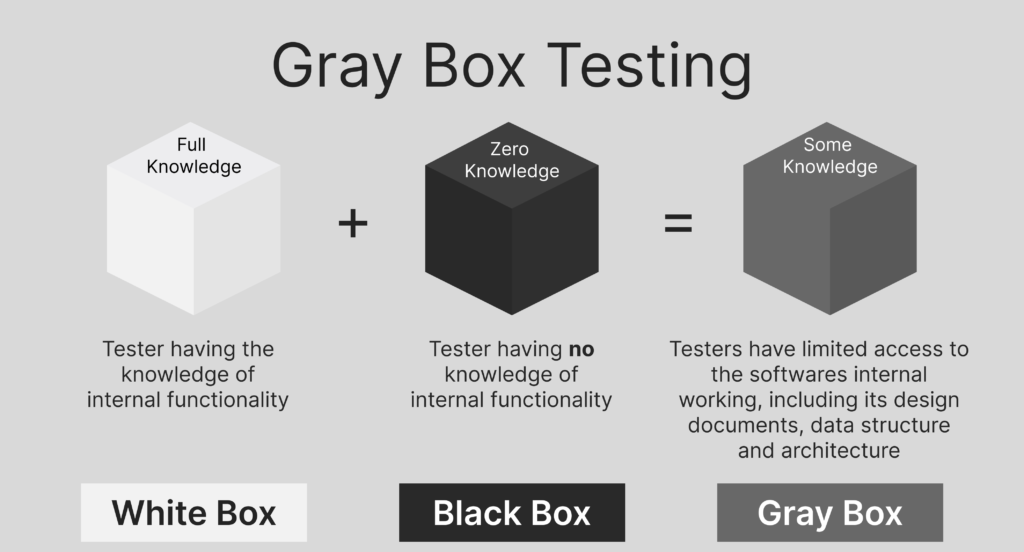
- The test does not have to be “grey box”: unit, integration, API, end-to-end, build and performance checks can all work.
git bisect runcan automate the entire search when your test returns meaningful exit codes.- Use
git showto inspect the culprit commit first; usegit blameto understand the history of specific lines. - Advanced blame options such as
-L,-M,-Cand ignored revisions make history much more useful after refactors and formatting changes.
What Is git bisect and When Should You Use It?
git bisect searches a range of Git history for the commit that changed a property of the code.
The classic use case is:
- a current revision is known to be bad because it contains a regression;
- an older revision is known to be good because the problem did not exist yet.
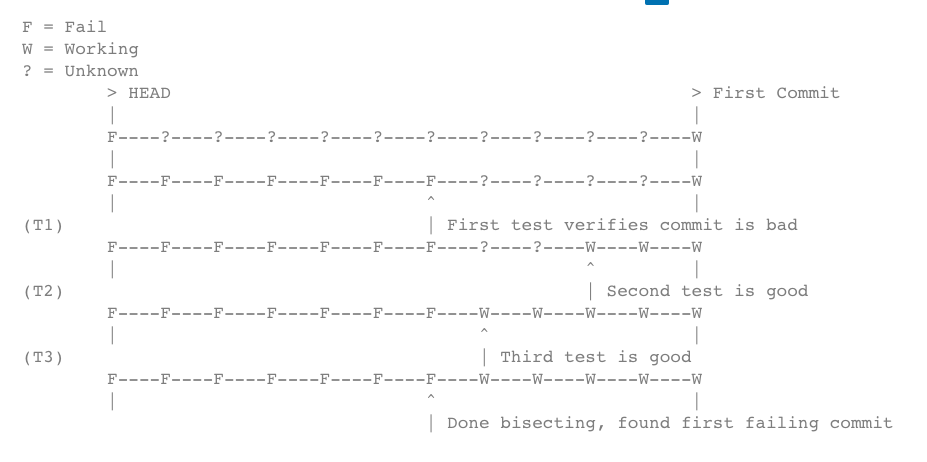
Git selects a commit roughly halfway between them. You test that revision and mark it good or bad. Git then discards half of the remaining search space and repeats the process.
Because this is a binary search, the number of tests grows logarithmically. If you had 20,000 candidate commits, you would need roughly 15 tests in an ideal bisect to isolate the transition.
F = failing / bad
W = working / good
? = unknown

        HEAD                                      known-good
          |                                           |
          F----?----?----?----?----?----?----?----?----W
          |                        ^
          |                        first midpoint test

          F----F----F----F----F----?----?----?----W----W
          |                             ^
          |                             next midpoint

          F----F----F----F----F----F----W----W----W----W
                                   ^
                                   boundary found
A Basic git bisect Workflow
Start the bisection:
git bisect startMark the current revision as bad if it contains the regression:
git bisect badThen identify a known-good revision:
git bisect good <known-good-commit>Git checks out a candidate commit. Run the same reproduction or test at that revision.
If it works:
git bisect goodIf the bug is present:
git bisect badContinue until Git reports the first bad commit.
When you are finished:
git bisect resetThat cleans up the bisection state and, by default, returns you to the revision you had checked out before starting.
The Most Important Part: Build a Reliable Reproduction
The quality of a bisect depends on the quality of the test you use to classify each commit.
The test should answer one binary question as consistently as possible:
Does this revision exhibit the problem, or not?
That test could be:
- a unit test;
- an integration or end-to-end test;
- an API or grey-box test;
- a build command;
- a performance threshold or benchmark;
- a shell/Python script;
- a manual reproduction when automation is not practical.
The original version of this article focused on grey-box testing. That remains a useful approach when reproducing an API or integration problem because you can combine knowledge of the system’s internals with observable external behaviour.
But Git itself does not require grey-box testing—the requirement is simply a reliable good/bad signal.
Example: Reproducing an API Regression
Imagine an API endpoint intermittently starts returning the wrong response after a change somewhere in a large commit range.
A useful reproducer might:
- set up deterministic test data;
- call the affected endpoint with the inputs known to trigger the problem;
- check the HTTP status and response payload;
- exit successfully if the old/correct behaviour is present and unsuccessfully when the regression is present.
A simplified Python test could look like:
def test_api_endpoint():
    response = make_api_request(input_data)

    assert response.status_code == expected_status_code
    assert response.json() == expected_response_data
Before automating the bisection, run the reproducer against both endpoints of the range:
- confirm the known-good commit actually passes;
- confirm the known-bad commit actually fails.
If those assumptions are wrong, the bisection result will be wrong too.
Automate the Search With git bisect run
If the test can be run from the command line, git bisect run can automate the repeated checkout-and-test cycle:
git bisect start
git bisect bad
git bisect good <known-good-commit>

git bisect run python run_regression_test.py

git bisect reset
This is more automated than the wording in the original 2023 article suggested: once git bisect run starts, your script reports the result through its exit code; you do not manually mark every midpoint good or bad.
The important exit-code contract is:
- 0 — the current revision is good;
- 1–127, except 125 — the current revision is bad;
- 125 — this revision cannot be tested, so Git should skip it.
That last case matters in real repositories. An older midpoint might fail to build for a reason unrelated to the regression you are investigating. Your script can return 125 rather than incorrectly labelling that commit good or bad.
For example:
#!/bin/sh

make || exit 125
python run_regression_test.py
If the build fails, Git skips the revision. If it builds, the test result decides whether the commit is good or bad.
Advanced git bisect Techniques
Skip a revision you cannot test
During a manual bisection:
git bisect skipYou can also skip a range.
Be aware that if the untestable commits sit immediately around the transition, Git may only be able to report a small set of possible culprit commits rather than one exact revision.
Limit the search to relevant paths
If you are genuinely confident the regression can only have been introduced by changes under a particular path, you can restrict the bisection:
git bisect start HEAD <known-good-commit> -- src/payments/This can reduce the number of candidate commits.
Use it only when the path assumption is sound—otherwise you may exclude the actual cause.
Use –first-parent for merge-heavy history
For some regressions introduced through branch merges, you may want to search only the first-parent history:
git bisect start --first-parent HEAD <known-good-commit>This is useful when merged topic branches contain intermediate commits that were broken or non-buildable, but only the integrated merge on the main line matters to your investigation.
The trade-off is that the result may identify the merge commit as the point where the regression entered the main line rather than identifying the exact internal commit from the merged branch.
You can then investigate that branch separately if needed.
Save the bisection decisions
If the investigation is important enough to reproduce or share:
git bisect log > bisect.logThose recorded decisions can later be replayed:
git bisect replay bisect.logWhen Bisect Finds the Culprit, Start With git show
Once git bisect identifies the first bad commit, the next question is:
What did this commit actually change?
Start with:
git show <culprit-commit>This gives you the commit metadata and patch together, making it the natural first tool for understanding the suspected change.
The original article jumped directly from bisect to git blame.
Blame is useful, but it answers a different question.
What git blame Actually Tells You
git blame annotates the current lines in a file with the revision and author that last modified each line.
git blame path/to/fileThis is useful when the culprit commit touches a piece of code whose history you do not understand. It can help you trace neighbouring lines back to the commits where they were introduced or last changed.
But git blame is not the best command for answering:
- Which files did the bad commit change? — use
git show; - What lines were deleted? — use
git log/ diff history; - Who is “responsible” for the bug? — that is not a useful technical question.
Treat blame as code archaeology: a path into the historical context behind a line, not an accountability scorecard.
Useful Advanced git blame Options
Blame only the lines you care about
git blame -L 120,170 path/to/fileThis is much easier to work with than annotating a large file when the problem is confined to one function.
Follow moved code within the same file
git blame -M path/to/file-M makes Git perform extra analysis to detect lines that were moved or copied within the file instead of automatically attributing the move to the refactoring commit.
Look for code copied or moved between files
git blame -C path/to/file-C extends that analysis across files.
Repeating -C makes Git search more aggressively for copied code in broader history.
Ignore mass-formatting or mechanical commits
A large formatter migration can make almost every line appear to have been “last changed” by one mechanical commit.
You can tell blame to look through a revision:
git blame --ignore-rev <formatting-commit> path/to/fileFor repositories with several such commits, maintain a file such as .git-blame-ignore-revs and use:
git blame --ignore-revs-file .git-blame-ignore-revs path/to/fileYou can also configure Git to use that file by default:
git config blame.ignoreRevsFile .git-blame-ignore-revsThis can dramatically improve blame usefulness after large whitespace, formatter or mechanical-refactor changes.
When git blame Is Not Enough: Search History for the Code Itself
Blame operates on lines that exist in the selected version of a file.
It does not directly tell you about code that was deleted or replaced.
If you know a string that appeared or disappeared, use Git’s history search:
git log -S'importantFunction(' -- path/to/file-S searches for commits that changed the number of occurrences of that string.
For a regular-expression match in added or removed diff lines, use:
git log -G'importantFunction\(' -- path/to/fileThis is often the missing step when blame tells you where today’s line came from, but the bug investigation is really about code that no longer exists.
Turn the Reproducer Into a Permanent Regression Test
Finding the bad commit should not be the end of the investigation.
If you created a reliable automated reproducer for git bisect run, you have already done much of the work required to create a regression test.
After fixing the bug:
- keep the smallest useful test that reproduces the original failure;
- verify that the test fails without the fix;
- verify that it passes with the fix;
- add it to the appropriate automated test suite or CI pipeline.
That changes the investigation from a purely reactive exercise into a permanent safeguard against the same class of regression returning.
This is the strongest idea from the original article and is worth retaining:
Every well-reproduced bug is an opportunity to improve automated test coverage.
A Practical Bug Investigation Workflow
- Reproduce the regression reliably.
- Identify one known-bad and one known-good revision.
- Run
git bisectmanually or automate it withgit bisect run. - Skip revisions that genuinely cannot be classified.
- Inspect the first bad commit with
git show. - Use
git blameand history searches to understand the surrounding code and previous changes. - Fix the actual root cause.
- Turn the reproducer into a regression test.
- Run that test in CI so the same failure is caught before it reaches production again.
Bottom Line
git bisect is one of Git’s most effective debugging tools when you can clearly distinguish a working revision from a broken one.
It turns a potentially huge commit history into a logarithmic search rather than a linear investigation.
Then use the right history tool for the next question: git show for the culprit commit, git blame for the history of current lines, and git log -S or -G when you need to find code that appeared, moved or disappeared.
Most importantly, preserve the reproducer.
The best outcome is not only finding the commit that caused today’s bug—it is adding a test that prevents tomorrow’s developer from having to investigate the same regression again.
Continue the Git Series
Next, see Advanced Git Merge Conflict Resolution Techniques for a practical workflow when branches cannot be merged cleanly.
Using Bitbucket for Pull Request Workflows?
Debugging the problem is only one part of maintaining a reliable development process. If your team uses Bitbucket and wants more control over which reviewers are added, which approvals are required, and when a pull request can merge, explore Workzone for Bitbucket on the Atlassian Marketplace.
By Sean Manwarring, Head of Marketing at Izymes
Published 13 June 2023 · Updated 19 October 2026